
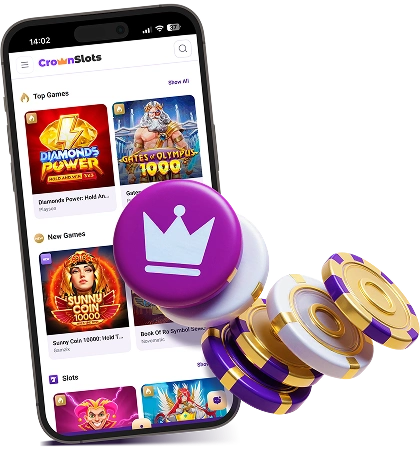
Using a phone to reach an online account can be convenient, but a small screen and changing networks make simple checks worthwhile. Crownz is described in the available material as accessible through a mobile browser rather than a confirmed downloadable app. If you are reviewing the sign-in information at stlukeschurchtorquay.co.uk, treat it as an informational reference and check the operator’s current requirements before entering personal details. The following tips focus on recognising the correct page, handling credentials safely and resolving common access problems.
Begin with the browser, not a saved shortcut

A mobile login is only as safe as the page you reach. Before entering an email address or password, inspect the address bar carefully and make sure the spelling and domain look correct. Be cautious with links received through unsolicited messages, pop-ups or social-media comments. A familiar logo or similar-looking page is not enough to prove that the destination is genuine.
Using a current version of a mainstream mobile browser reduces avoidable compatibility problems. Enable automatic updates for the browser and your phone’s operating system where practical, because security fixes often address weaknesses that are not obvious during everyday use. Avoid signing in through a browser that displays warnings about an invalid certificate, an unsafe connection or unusual redirections.
Private browsing can reduce local history and saved-session information, but it does not make an unsafe website trustworthy or hide activity from the network provider. It is also not a substitute for checking the address. If a page behaves unexpectedly, repeatedly reloads, or asks for information unrelated to ordinary account access, close it and verify the destination independently before continuing.
What should you check before entering credentials?
Take a moment to confirm that you are using your own device or a device you trust. Public or shared phones may retain browser data, screenshots, notifications or autofill records. If you must use another device, avoid saving the password, disable automatic form filling afterwards and sign out completely. Never allow a browser to remember credentials on equipment that other people can access.
Use a unique password for the account and keep it out of notes, messages and easily guessed personal details. A password manager can generate and store a long password without requiring you to type it on a small screen. Check that the password manager is the genuine application installed from an official store, rather than a similarly named download or browser extension.
Be alert to requests for information that do not fit the immediate task. The published account material says identity, residence and payment documents may be requested for checks, but that does not mean they should be sent through an unknown form or informal message. Confirm where documents must be uploaded and why they are needed. If in doubt, pause and use the stated support route rather than replying to an unexpected request.
Forgotten passwords need a controlled reset
The available account guidance says that a user who has forgotten a password should choose “Need Help?” and then “Forgot Password” on the login page. The reset process requires the registered email address, after which instructions are sent to that address. Use the exact email account associated with the profile, and avoid repeatedly submitting different addresses if the first attempt does not produce an immediate message.
Check the spam, junk and promotions folders before requesting another reset email. Search for the service name and terms such as “password” or “reset”, while taking care not to open suspicious attachments or follow unrelated links. A genuine reset message should lead to a recognisable password-reset process. If the message asks for the existing password, payment details or an unusual fee, do not continue.
After resetting the password, sign in once and check that the browser has not stored an old version. Update the password manager if necessary and remove obsolete saved entries. If you did not request the reset, change the password immediately from a trusted device and seek support. Do not share a reset code with another person, even if they claim to be helping with account access.
Mobile connection problems are not always password problems
A failed sign-in can result from a weak mobile signal, an unstable Wi-Fi connection, an outdated browser or temporary service trouble. First, check whether other secure websites load normally. Then switch between Wi-Fi and mobile data if appropriate, close unused tabs and reopen the browser. Avoid repeatedly submitting credentials while the page is frozen, as this can create confusion about whether a request was accepted.

Browser settings can also affect the process. Excessive content blocking, disabled cookies or a corrupted cache may prevent a login page from completing. Rather than changing many settings at once, try a fresh browser session or clear site data for the relevant page only. Do not disable wider security protections permanently simply to force a page to load.
For broader guidance on protecting accounts and devices, the National Cyber Security Centre’s security advice offers practical information for people in the UK. Its general recommendations do not confirm any particular operator’s account features, but they are useful when reviewing passwords, software updates and suspicious messages. If the problem continues, record the error wording and contact the advertised support channel without sending your password.
Stay cautious after a successful sign-in
Reaching the account is not the end of the security check. Review the page address again after signing in, particularly if you arrived through a reset message. Sign out when finished, especially on a shared device, and close the browser tab if notifications or personal information remain visible. Avoid taking screenshots that include account details, balances, email addresses or verification information.
The available material says live chat is advertised for account-access, registration, verification and payment questions. Use support for persistent login failures, missing verification emails or suspected account problems, but keep communications focused. Support should not need your password. If identity documents are requested, follow only the operator’s stated process and check the file contents before uploading anything.
Finally, keep expectations realistic when accessing the service from a phone. The information reviewed confirms browser-based mobile access but does not establish a dedicated iOS or Android application, app-store availability or special mobile features. Do not install an unofficial app presented as a shortcut. A careful browser check, unique password, controlled reset process and prompt response to unusual activity provide a more dependable approach than convenience alone.
Mobile sign-in questions answered
Is there a confirmed mobile app?
The available information confirms access through a mobile browser, but it does not confirm a dedicated iOS or Android app. Treat app claims cautiously, avoid unofficial downloads and check the operator’s current information before installing anything. Browser access and app availability should not be treated as the same feature.
What should I do if the reset email is missing?
Check spam, junk and promotions folders, then confirm that you entered the registered email address correctly. Request another message if the page allows it. If nothing arrives, avoid sending credentials elsewhere and contact the stated support channel, explaining the issue without disclosing your password.
Can I sign in safely on public Wi-Fi?
Public Wi-Fi increases uncertainty because you may not control the network. Prefer mobile data or a trusted private connection, keep your device and browser updated, and avoid saving credentials. If you must use public Wi-Fi, verify the address carefully, sign out afterwards and monitor the account for anything unusual.